Postman Not Opening on Windows 11? Fix GPU Process Crash

Maksudur Rahman
Software Engineer
Postman Not Opening on Windows 11? Fix GPU Process Crash Step by Step
Postman is installed, you double-click the icon, and nothing happens — or a window flickers for a fraction of a second and vanishes. The problem is almost never a corrupted installation. On Windows 11, the most common culprit is the Electron/Chromium GPU subsystem failing to initialize, which kills the process before any UI appears.
This guide walks through the exact diagnostic steps to confirm the cause and get Postman running again, including a permanent--disable-gpu shortcut as a workaround while you sort out your graphics driver.
Quick Summary / Prerequisites
OS: Windows 11 (applies to any edition)
Tools: PowerShell (built-in), winget (built-in on Windows 11)
Postman version tested: 12.24.5
Estimated time: 10–20 minutes
Fix
If you see FATAL: GPU process isn't usable. Goodbye. in the console after launching the versioned Postman binary, run:
& "$env:LOCALAPPDATA\Postman\app-12.24.5\Postman.exe" --disable-gpu --disable-gpu-compositing --disable-gpu-sandboxIf Postman opens, your installation is fine — only the GPU path is broken. Update your graphics driver for a permanent fix, and create the desktop shortcut in Step 10 as an interim workaround.
What Causes Postman Not to Open?
Before running commands, it helps to understand the four buckets this problem falls into:
Category | Symptom |
|---|---|
Installation problem |
|
Postman Agent crash |
|
Port/network conflict | Postman opens but cannot connect to APIs or localhost services |
Electron GPU crash | Process starts and immediately exits — no window ever appears |
The last scenario — Electron GPU crash — is the one most developers land on when Postman simply "won't open."
Step 1: Check Whether Postman Is Installed
Open PowerShell and run:
winget list PostmanExpected output:
Name                Id              Version
---------------------------------------------------
Postman x64         Postman.Postman 12.24.5
If it shows up, move on. If nothing appears, install it first:
winget install Postman.PostmanYou can also confirm the installation directory exists:
Get-ChildItem "$env:LOCALAPPDATA\Postman"A healthy installation contains at minimum: Postman.exe, Update.exe, and an app-<version>folder.
Step 2: Check Whether Postman Actually Starts
Try launching the top-level launcher directly:
& "$env:LOCALAPPDATA\Postman\Postman.exe"Then immediately check whether a process is still alive:
Get-Process Postman -ErrorAction SilentlyContinue | Select-Object Id, ProcessName, PathIf you get empty output and no window appeared, the process is exiting immediately. Continue to the next step.
Step 3: Check Windows Application Errors
Windows Event Viewer sometimes logs application crashes before you check:
Get-WinEvent -FilterHashtable @{
    LogName      = 'Application'
    ProviderName = 'Application Error'
} -MaxEvents 100 |
Where-Object { $_.Message -match 'Postman.exe' } |
Select-Object TimeCreated, Id, Message |
Format-List
A common outcome here: no Postman.exe entry at all. That is not necessarily a dead end — Electron processes can terminate before Windows records a standard crash. The GPU process failure happens internally and doesn't always surface as a conventional application fault.
Step 4: Check Whether a Port Conflict Is the Cause
This is the step most guides jump to immediately. It's almost never the right answer for a startup failure.
Get-NetTCPConnection -State Listen |
Select-Object LocalAddress, LocalPort, OwningProcess |
Sort-Object LocalPort
If you want to identify what's on a specific port:
Get-Process -Id <PID>The Postman desktop application does not need port 80, 443, 3000, or any other specific port just to open and display its interface. Port conflicts matter once Postman is running and you're trying to reach a local service. If the app won't even show a window, skip port investigation and move on.
Step 5: Separate the Postman Agent Problem
Postman Agent is a separate background process. Confirm what's installed:
winget list PostmanYou may see both:
Postman x64         Postman.Postman       12.24.5
Postman Agent x64   Postman.PostmanAgent  ...
Check whether the Agent is logging errors:
Get-WinEvent -FilterHashtable @{
    LogName = 'Application'
    Level   = 2
} -MaxEvents 200 |
Where-Object { $_.Message -match 'Postman|Postman.exe|Electron' } |
Select-Object TimeCreated, ProviderName, Id, Message |
Select-Object -First 20 |
Format-List
You might see something like:
Faulting application name: Postman Agent.exe
Exception code: 0x80000003
An Agent fault is a separate issue. The Agent handles desktop API interception — it is not required for the main Postman application to open. Fixing or reinstalling the Agent will not solve a GPU process crash in the main app.
Step 6: Find the Actual Postman Electron Executable
This is a detail that trips people up. The file at:
%LOCALAPPDATA%\Postman\Postman.exeis a small launcher (~1 MB). The real Electron application binary lives under:
%LOCALAPPDATA%\Postman\app-12.24.5\Postman.exeConfirm it exists:
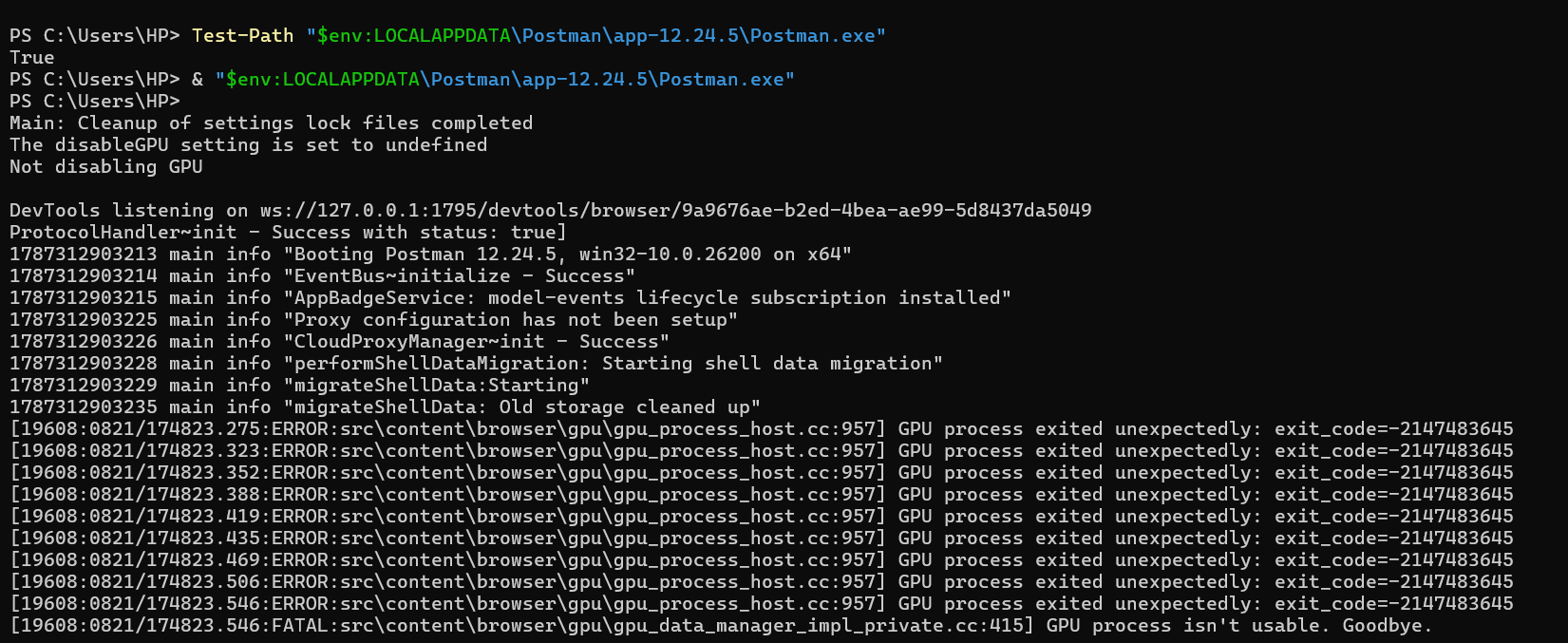
Test-Path "$env:LOCALAPPDATA\Postman\app-12.24.5\Postman.exe"Result should be True. Now launch it directly:
& "$env:LOCALAPPDATA\Postman\app-12.24.5\Postman.exe"Running the versioned binary from a console is what reveals the GPU error — the top-level launcher swallows most of the output.
Step 7: Identify the GPU Process Error
When you launch the versioned binary from PowerShell, watch the console output. The key lines to look for:
GPU process exited unexpectedlyfollowed immediately by:
FATAL: GPU process isn't usable. Goodbye.This is the diagnostic confirmation. Postman's Electron runtime tried to spin up a Chromium GPU process, that process failed to initialize, and Electron terminated the entire application.
At this point you know the problem is not a corrupt install, not a port conflict, and not a permissions issue.
Step 8: Inspect Your Graphics Driver
Check your current graphics driver from PowerShell:
Get-CimInstance Win32_VideoController |
Select-Object Name, DriverVersion, DriverDate, Status
Sample output:
Name           : Intel(R) Iris(R) Xe Graphics
DriverVersion  : 31.0.101.4502
DriverDate     : 2023-06-14 00:00:00
Status         : OK
A driver from 2022–2023 on a machine running Windows 11 with recent updates can introduce Chromium GPU compatibility issues. Electron apps (VS Code, Figma, Postman, Slack) all use the same Chromium GPU stack, so if one of them also misbehaves, an outdated driver is almost certainly the root cause.
To update Intel graphics drivers: go to Intel Driver & Support Assistant or download directly from the Intel Download Center.
For NVIDIA: use GeForce Experience or download directly from nvidia.com.
For AMD: use AMD Software: Adrenalin Edition or the AMD support site.
Step 9: Launch Postman With GPU Disabled
While the driver update is pending, this is your immediate fix. Run:
& "$env:LOCALAPPDATA\Postman\app-12.24.5\Postman.exe" `
    --disable-gpu `
    --disable-gpu-compositing `
    --disable-gpu-sandbox
If Postman launches successfully, the console log should change from:
FATAL: GPU process isn't usable. Goodbye.to something like:
windowManager: First requester booted successfully.Three flags are used here and each serves a purpose:
Flag | Effect |
|---|---|
| Turns off hardware-accelerated rendering entirely |
| Disables GPU-based compositing pipeline |
| Removes the GPU process sandbox that can conflict with older drivers |
You lose hardware acceleration, but for an API testing tool that primarily renders JSON and HTTP headers, the difference is imperceptible.
Step 10: Create a Permanent Desktop Shortcut
Typing the full command every session is tedious. This PowerShell script creates a proper.lnk shortcut on your Desktop:
$desktop      = [Environment]::GetFolderPath("Desktop")
$postmanExe   = "$env:LOCALAPPDATA\Postman\app-12.24.5\Postman.exe"
$shortcutPath = Join-Path $desktop "Postman (No GPU).lnk"

$shell    = New-Object -ComObject WScript.Shell
$shortcut = $shell.CreateShortcut($shortcutPath)

$shortcut.TargetPath       = $postmanExe
$shortcut.Arguments        = "--disable-gpu --disable-gpu-compositing --disable-gpu-sandbox"
$shortcut.WorkingDirectory = Split-Path $postmanExe
$shortcut.IconLocation     = "$postmanExe,0"
$shortcut.Description      = "Postman with GPU acceleration disabled"

$shortcut.Save()

Write-Host "Shortcut created at: $shortcutPath"
Double-clicking Postman (No GPU).lnk on the Desktop will launch Postman with all three GPU flags applied automatically.
Note: If Postman auto-updates to a new version (e.g.,
app-12.25.0), the path in the shortcut will become stale. Re-run the script or update$postmanExeto point to the new version folder.
Why Did Postman Suddenly Stop Working?
If Postman was working fine last week and broke without any manual intervention, something in the environment changed. The common triggers:
Windows Update— cumulative updates sometimes include driver or DirectX changes that affect GPU layer compatibility
Graphics driver rollback or update— both directions can break Chromium GPU initialization if the driver and Electron version are mismatched
New Postman / Electron version— each Postman release ships a different Electron version, which in turn uses a newer Chromium GPU stack
Hardware acceleration policy change— certain Windows policies or power management settings can alter GPU availability
In most real-world cases this is a graphics driver that didn't age well against a newer Electron build. The fix is a driver update, not a Postman reinstall.
Troubleshooting Decision Flow
flowchart TD
    A([Postman Won't Open]) --> B{winget list shows Postman?}
    B -- No --> C["Install: winget install Postman.Postman"]
    B -- Yes --> D{"app-12.x.x/Postman.exe exists?"}
    D -- No --> E[Reinstall Postman]
    D -- Yes --> F[Launch versioned exe directly from PowerShell]
    F --> G{GPU error in console output?}
    G -- No --> H[Check Event Viewer and Agent logs]
    G -- Yes --> I["Launch with --disable-gpu flags"]
    I --> J{Postman opens successfully?}
    J -- Yes --> K["Create desktop shortcut + update GPU driver"]
    J -- No --> L[Check driver status and reinstall Postman]
Recommended Troubleshooting Order
When Postman won't open on Windows 11, work through these in sequence — don't skip ahead to reinstalling:
Confirm installation:
winget list PostmanTry the top-level launcher:
& "$env:LOCALAPPDATA\Postman\Postman.exe"Check Event Viewer for
Postman.execrash entriesCheck Postman Agent separately— do not conflate Agent faults with the main app problem
Launch the versioned Electron binary from
app-<version>/Postman.exeLook for GPU error output in the console
Test GPU-disabled mode: add
--disable-gpu --disable-gpu-compositing --disable-gpu-sandboxUpdate your graphics driver— long-term fix
Create the permanent shortcut— interim workaround
Frequently Asked Questions
Why is Postman not opening on Windows 11?
The most common cause is the Electron/Chromium GPU process failing to initialize, which produces FATAL: GPU process isn't usable. Goodbye. and kills the application before any window appears. An outdated Intel, AMD, or NVIDIA graphics driver is typically the trigger on Windows 11 systems.
How do I fix "GPU process isn't usable" in Postman?
Launch the versioned Postman Electron binary with--disable-gpu --disable-gpu-compositing --disable-gpu-sandbox. If Postman opens, the installation itself is fine — only the hardware-accelerated GPU path is broken. Update your graphics driver for a permanent fix.
Does Postman require a specific port to open?
No. The Postman desktop application does not need any specific TCP port to launch and display its interface. Port conflicts only become relevant when Postman is already running and you're trying to connect to local APIs, mock servers, or proxies.
How do I disable GPU acceleration in Postman permanently?
Create a Windows.lnk shortcut pointing to the versioned Postman.exe inside app-<version>/and set the Arguments field to--disable-gpu --disable-gpu-compositing --disable-gpu-sandbox. The PowerShell script in Step 10 automates this.
Should I reinstall Postman if it won't open?
Not as a first step. A reinstall does not fix a graphics driver incompatibility. Run the diagnostic steps first — especially Step 9 (GPU-disabled launch). Only reinstall if the app-<version>directory is missing or the binary itself is corrupted.
Next Steps
Now that Postman is running, check out our guide on API design principles to structure your requests cleanly before you start testing. If you're also running a local development stack, our Docker Compose + Nginx reverse proxy setup tutorial will help you proxy your services so Postman can reach them without CORS issues.